
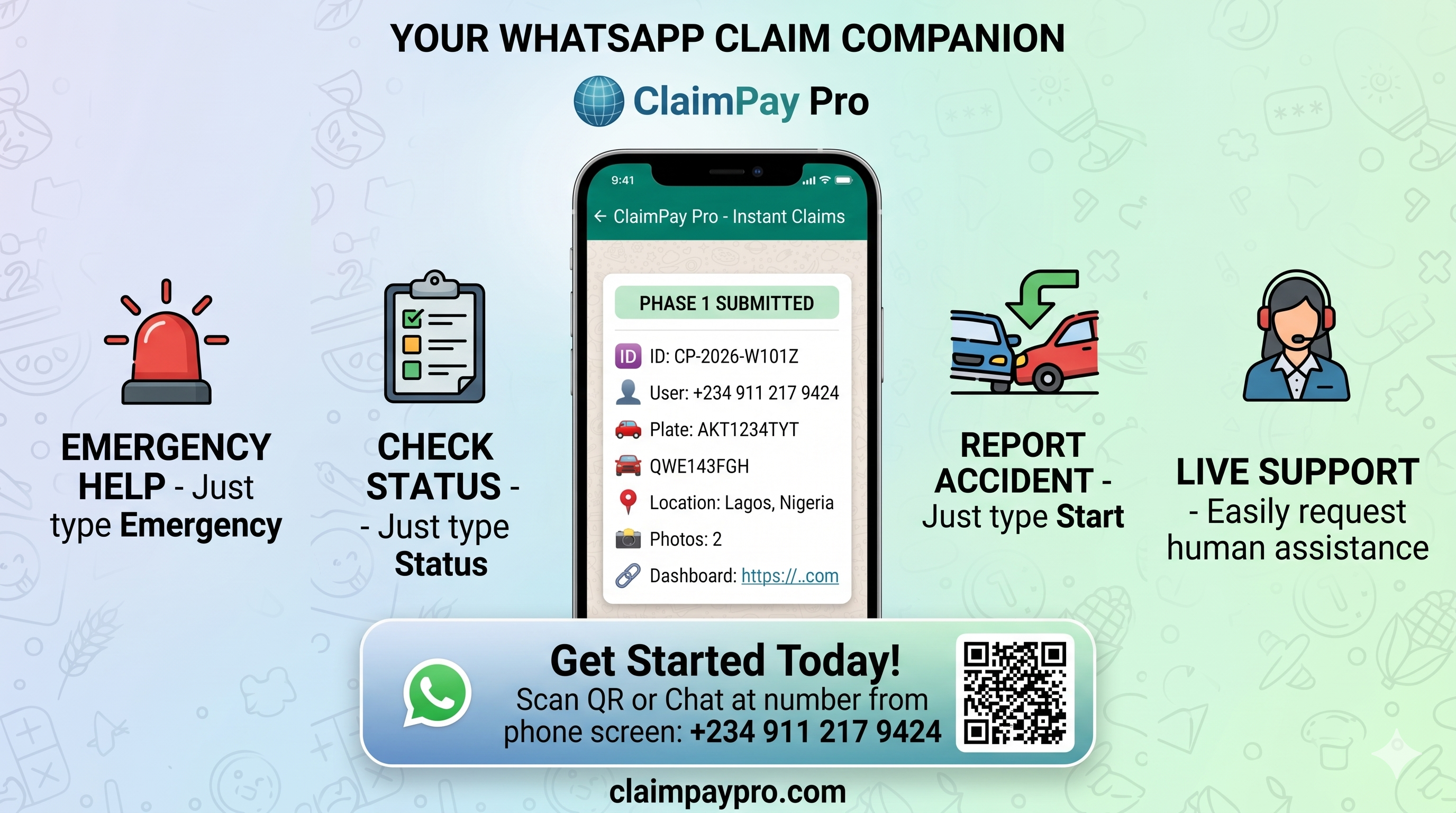
Convenience is now truly at your fingertips.
The most stressful part of an accident is often the aftermath — searching for login credentials, navigating complicated portals, or filling out lengthy paperwork while still at the scene. This post covers two things: our brand-new WhatsApp Claim Companion, and a complete walkthrough of how to file a digital claim from start to finish.
Now Live in Your Pocket
The ClaimPay Pro chatbot brings the full digital claims experience directly into WhatsApp. Message wa.me/2348135418986 or scan the official QR code to get started instantly.
Report a New Accident Instantly
How to start
Type and send Start to begin your Phase 1 submission. The chatbot guides you through a conversational claims flow:
- Share your location pin (e.g. Lagos, Nigeria)
- Enter vehicle licence plate numbers
- Provide accident details & begin FNOL immediately
Snap & Upload Evidence On the Go
Native media sharing
With WhatsApp's built-in media tools, upload directly within your chat session — vehicle damage, scene images, and supporting documentation. No portal login needed.
Real-Time Claim Status Tracking
Check your claim
Type Status to instantly pull your live claim summary — Claim ID, current stage, dashboard links, and Phase 1 approval updates.
Emergency Assistance & Human Support
Two paths to help
Send Emergency for immediate safety routing. Need a real person? Live Support hands you to a claims representative instantly.
How to Get Connected
Under 30 seconds. Pick your preferred method below.
Scan QR Code

Use your smartphone camera to scan the code and start chatting immediately.
Click-to-Chat
Visit ClaimPay Pro to access direct WhatsApp click-to-chat links from any device, anytime.
Filing a Digital Collision Claim
A minor fender bender should not lead to major paperwork. Here is the exact process for submitting your First Notice of Loss — from the moment of impact to final completion.
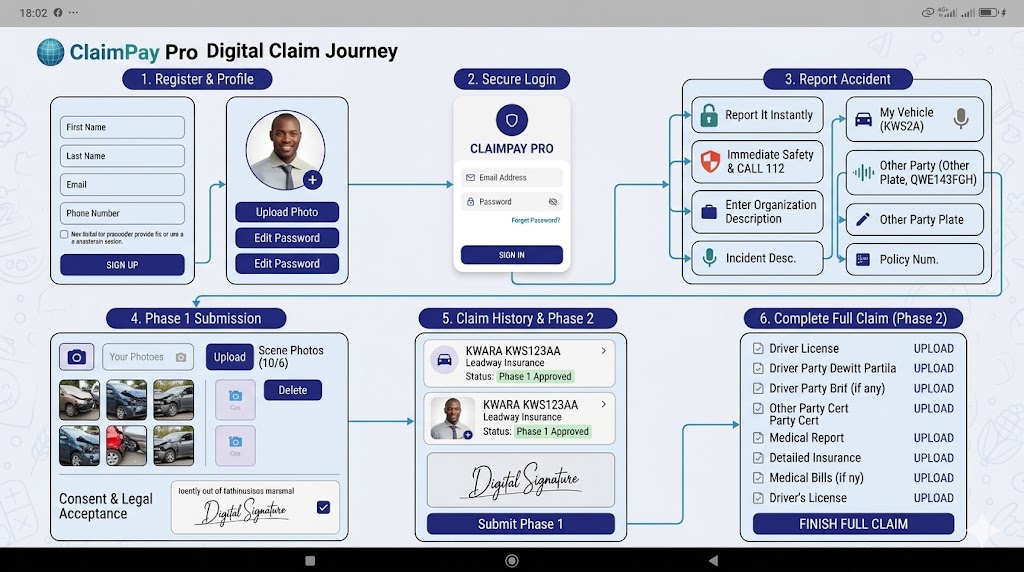
Register & Secure Your Account
Your digital claims journey begins with a secure account.
Create your account
Enter your full name, email address, and phone number.
Build your profile
Upload a profile photo and create a strong, unique password to personalise and protect your account.
Secure login access
Once registered, access the encrypted portal anytime from your phone, tablet, or computer via the dedicated login panel.
Report the Accident Details
After ensuring everyone is safe, begin documenting the incident digitally within the portal.
Safety first
The platform includes a prominent Immediate Safety & Call 112 option to contact emergency services if injuries are involved.
Link your vehicle & policy
Select your insured vehicle using your licence plate, then connect the relevant insurance policy number.
Describe what happened
- Use text entry or voice-to-text via Incident Desc. to record a clear description while details are fresh.
- For fleet or corporate drivers, use Enter Organisation Description to capture company records.
Select Report It Instantly to process your core submission.
Phase 1 Submission: Media & Consent
Visual documentation plays a major role in accelerating claim assessments.
Upload accident photos
Take and upload up to 10 scene photos directly from your device — vehicle damage, surroundings, road conditions, and any visible evidence.
Complete digital consent
Review the Consent & Legal Acceptance terms, add your first digital signature on-screen, and confirm by checking the approval box before submitting Phase 1.
Track Your Claim & Unlock Phase 2
After submission, your dashboard lets you monitor progress in real time. Once the claims team reviews your submission, your status updates to a green Phase 1 Approved label.
Complete the Full Claim (Phase 2)
Upload all required supporting documents into the system checklist:
Submit your full claim
After attaching all mandatory documents, click Finish Full Claim. Your submission moves immediately into final verification and processing for payout.
Why Digital Claims Matter
Traditional claims are slow, paper-heavy, and stressful. ClaimPay Pro changes that — permanently.
With ClaimPay Pro, your insurance claim fits directly into your pocket — on the portal or on WhatsApp, ready whenever you need it most.